How to Use Hotspot / Tethering with a Travel eSIM: Setup, Data Use and Fixes
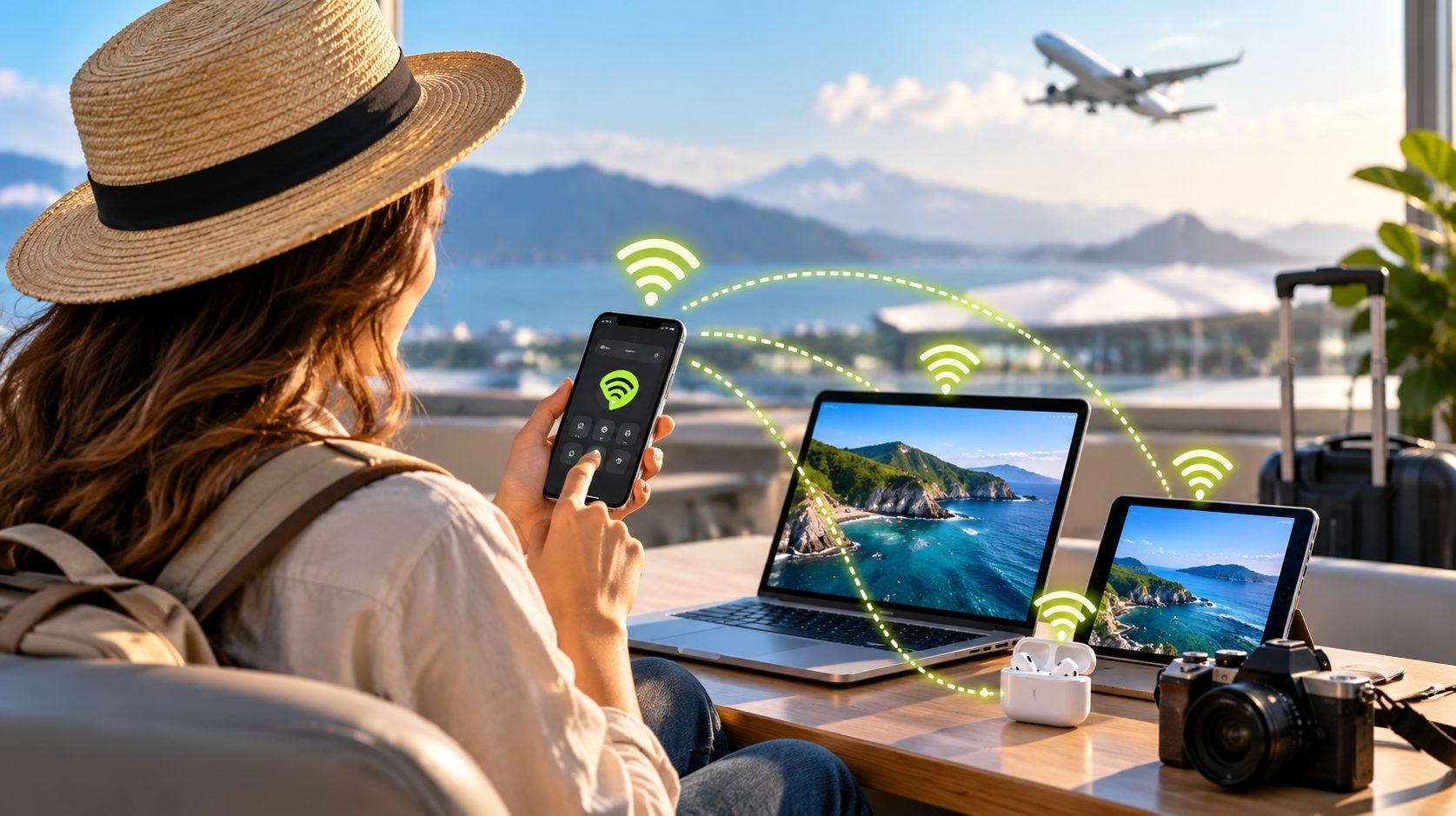
A travel eSIM hotspot (also called tethering) shares the cellular data from a digital SIM profile on your phone with a laptop, tablet, or second phone over Wi-Fi, Bluetooth, or a USB cable. Your phone acts as a small router. Every connected device draws from the same data allowance, so a 10 GB plan shared with a laptop runs down much faster than it would on the phone alone.
Most travel eSIM plans allow hotspot use, but some providers block or cap tethering, so the plan details decide whether sharing works before any setting does. Apple’s iPhone calls the feature Personal Hotspot, while Samsung Galaxy and Google Pixel phones list it as Mobile Hotspot or Wi-Fi hotspot.
The eSIM follows the GSMA’s remote SIM provisioning standard, so you install a carrier profile by QR code with no plastic card. On a dual-SIM phone, the hotspot shares whichever line is set for cellular data. That setting causes more failed hotspots than anything else, along with Data Roaming left off.
Data use depends on the connected device. Web browsing uses roughly 50 to 150 MB an hour, while Netflix lists up to 3 GB an hour for HD video. Restarting the hotspot, checking the APN, or turning on Maximize Compatibility fixes most connection drops. And compared with pocket Wi-Fi or hotel networks, an eSIM hotspot costs nothing extra to carry and keeps your traffic off shared public access points.
What hotspot and tethering mean on a travel eSIM
Tethering is the general term for sharing a phone’s mobile data with another device. A hotspot is the Wi-Fi version of it. The phone broadcasts a password-protected network that several devices can join, typically 5 to 10 at once depending on the model.
A travel eSIM changes nothing about how tethering works. It only changes which network supplies the data. Your home line can stay on for calls and texts while the travel eSIM carries the internet traffic.
Check three things before sharing data
Plan permission comes first. Read the plan description for words like “hotspot,” “tethering,” or “data sharing.” Some unlimited plans throttle tethered traffic or block it entirely, while fixed-GB plans usually allow it.
Device support comes second. Any eSIM-capable iPhone (XS and later) or recent Samsung Galaxy, Google Pixel, or Motorola phone can run a hotspot. In the United States, iPhone 14 and later models ship without a physical SIM tray, so the eSIM line is the only option there.
The data line comes third. Open your phone’s SIM settings and confirm the travel eSIM is:
Turned on as an active line
Selected as the line for cellular or mobile data
Allowed to use Data Roaming
Data Roaming trips up many first-time users. A travel eSIM connects through partner networks abroad, so the phone treats it as roaming even though the provider doesn’t charge roaming fees. With those settings confirmed, iPhone setup is quick.
How to set up Personal Hotspot on iPhone
iPhone hotspot settings sit in the Settings app:
Open Settings > Cellular and tap the travel eSIM line. Turn on the line and Data Roaming.
Go back to Cellular Data and select the travel eSIM.
Open Settings > Personal Hotspot (or Settings > Cellular > Personal Hotspot).
Turn on Allow Others to Join.
Tap Wi-Fi Password and set at least eight characters.
On the laptop or tablet, open Wi-Fi settings, pick your iPhone’s name, and enter the password.
Apple devices on the same Apple Account or Family Sharing group can use Instant Hotspot and join without a password.
If an older laptop can’t see the network, turn on Maximize Compatibility in the Personal Hotspot screen. It switches the hotspot to the 2.4 GHz band, which older Wi-Fi cards support, at some cost to speed. Android phones follow a similar path with different menu names.
How to set up Mobile Hotspot on Android
Android menus vary by brand, but the logic stays the same. On a Samsung Galaxy:
Open Settings > Connections > SIM manager and set the travel eSIM as the mobile data SIM.
Go to Settings > Connections > Mobile networks and turn on Data roaming.
Open Settings > Connections > Mobile Hotspot and Tethering.
Tap Mobile Hotspot, set a name and password, and choose WPA2 or WPA3 security.
Switch Mobile Hotspot on.
On a Google Pixel, the path is Settings > Network & internet > Hotspot & tethering > Wi-Fi hotspot. Toggle “Use Wi-Fi hotspot,” then edit the name and password on the same screen. Cable and Bluetooth options appear in that tethering menu too.
USB and Bluetooth tethering options
USB tethering gives the most stable link and keeps the phone charging while it shares. Plug the phone into the laptop, then turn on USB tethering (Android) or tap Trust on the iPhone prompt. Windows PCs need the Apple Devices app or iTunes installed to recognize an iPhone connection.
Bluetooth tethering suits low-data tasks like email and messaging. Pair the two devices, then pick the phone as a network access point in the laptop’s Bluetooth settings. Speeds drop well below Wi-Fi, but battery drain falls too. Whichever method you pick, the data still comes from one shared allowance.
How much data a hotspot uses
Laptops use far more data than phones because desktop websites, apps, and operating systems assume a fixed broadband connection.
Three hours of remote work with two video calls can use 2 to 4 GB. So size your plan around the laptop, not the phone.
Ways to cut hotspot data use
Settings on the connected device save gigabytes:
Mark the hotspot as a metered connection in Windows (Settings > Network & internet > Wi-Fi > your network).
Turn on Low Data Mode for the hotspot network on a Mac or iPad.
Pause iCloud, Google Drive, OneDrive, and Dropbox sync until you reach hotel Wi-Fi.
Lower streaming quality to 480p or “Data Saver.”
Postpone operating system and app updates.
Even with careful settings, connections sometimes fail.
Travel eSIM hotspot not working: common fixes
Most hotspot failures trace back to a setting rather than the network. Try these fixes in order:
Wrong data line: the hotspot shares the line set for cellular data. Switch it to the travel eSIM.
Data Roaming off: turn it on for the travel eSIM line.
Missing hotspot option: on iPhone, check Settings > Cellular > Cellular Data Network. Some plans need the provider’s APN entered in the Personal Hotspot field.
Plan restriction: the provider blocks tethering. Only a different plan solves this.
VPN conflict: some VPN apps interfere with tethered traffic. Disable the VPN and test again.
Dropped connection: turn the hotspot off and on, forget the network on the laptop, and rejoin.
If nothing works, restart both devices. Resetting network settings is the last step, because it erases saved Wi-Fi passwords. A working hotspot also compares well with pocket Wi-Fi.
eSIM hotspot vs pocket Wi-Fi vs public Wi-Fi
An eSIM hotspot wins on cost and convenience for most travelers. You carry no extra hardware, there’s no rental deposit, and the connection works wherever your phone has signal.
Pocket Wi-Fi routers handle bigger groups and spare the phone’s battery. But they need daily charging plus rental pickup and return.
Public Wi-Fi in hotels, cafes, and airports costs nothing and often runs slowly. Open networks expose traffic to others on the same access point. For anyone choosing a plan to share, Vesim’s catalog covers the main destinations.
Sharing data with a Vesim travel eSIM
Vesim sells eSIM plans for 220 countries and destinations, with prices starting from $0.60. Activation happens instantly after installation, with no physical SIM to swap, and more than 10,000 travelers use the service.
Before buying a plan you’ll share with a laptop, check the plan details on the Vesim country page for that destination, for example eSIM plans for the United States or eSIM plans for Japan. Pick an allowance that covers the laptop’s usage from the table above.
Can you use a hotspot with a travel eSIM?
Yes, on most plans. A travel eSIM shares data through Personal Hotspot or Mobile Hotspot like any SIM. Some providers block or limit tethering, so confirm the plan allows it before you travel.
What is tethering on a phone?
Tethering shares your phone’s mobile data with another device over Wi-Fi, Bluetooth, or USB. The phone becomes the internet source, and the connected device uses the same allowance.
Does hotspot use more data than browsing on the phone?
Yes, usually much more. A laptop loads desktop websites, runs background updates, and can burn through 1 GB in an hour of mixed use that would take a phone half a day.
Will I pay roaming fees if I hotspot with a travel eSIM?
No. Hotspot data comes out of the travel eSIM’s prepaid allowance. Roaming charges only apply if the phone falls back to your home carrier’s line.
Which devices can connect to an eSIM hotspot?
Laptops, tablets, phones, e-readers, and handheld game consoles can all connect over Wi-Fi. Windows and Mac computers can also use USB or Bluetooth tethering.
How many devices can join one hotspot?
Most phones allow 5 to 10 devices. Each extra device splits the available speed, so two or three active devices is a practical limit.
Which is better for a family trip, an eSIM hotspot or pocket Wi-Fi?
An eSIM hotspot is cheaper and lighter for two to four people. Pocket Wi-Fi suits larger groups that stream heavily, because it keeps the battery load off one person’s phone.
Is USB tethering faster than a Wi-Fi hotspot?
Yes, USB tethering is usually more stable and charges the phone at the same time. Bluetooth is the slowest of the three.
Why does my iPhone not show Personal Hotspot?
The travel eSIM probably isn’t set as the cellular data line, or its APN is blank. Fix the data line first, then enter the provider’s APN if one is required.
Does tethering drain the phone battery?
Yes, a hotspot drains battery quickly, often faster than streaming video on the phone. Plug the phone in, use USB tethering, or switch the hotspot off between sessions.
Is a phone hotspot safer than public Wi-Fi?
Yes, a password-protected hotspot is safer than an open public network. Use WPA2 or WPA3 security and a password of at least eight characters.
How do I stop a laptop from using too much hotspot data?
Set the connection as metered in Windows, or turn on Low Data Mode on a Mac. Then pause cloud syncing and postpone large updates.
Travel eSIM hotspot use, in short
A travel eSIM hotspot turns your phone into a small router that shares one cellular data allowance over Wi-Fi, Bluetooth, or USB. Sharing works once the plan permits tethering, the travel eSIM is the cellular data line, and Data Roaming is on. Personal Hotspot on iPhone and Mobile Hotspot on Samsung or Pixel then take a minute to switch on, with USB and Bluetooth as steadier or lower-power alternatives. Laptops drive data use, from 50 to 150 MB an hour browsing to up to 3 GB an hour for HD video, so metered connections and paused syncs matter. Most failures come down to the data line, the APN, or Maximize Compatibility. Against pocket Wi-Fi and public networks, the eSIM hotspot is the lighter, safer option. Find a plan you can share at Vesim.