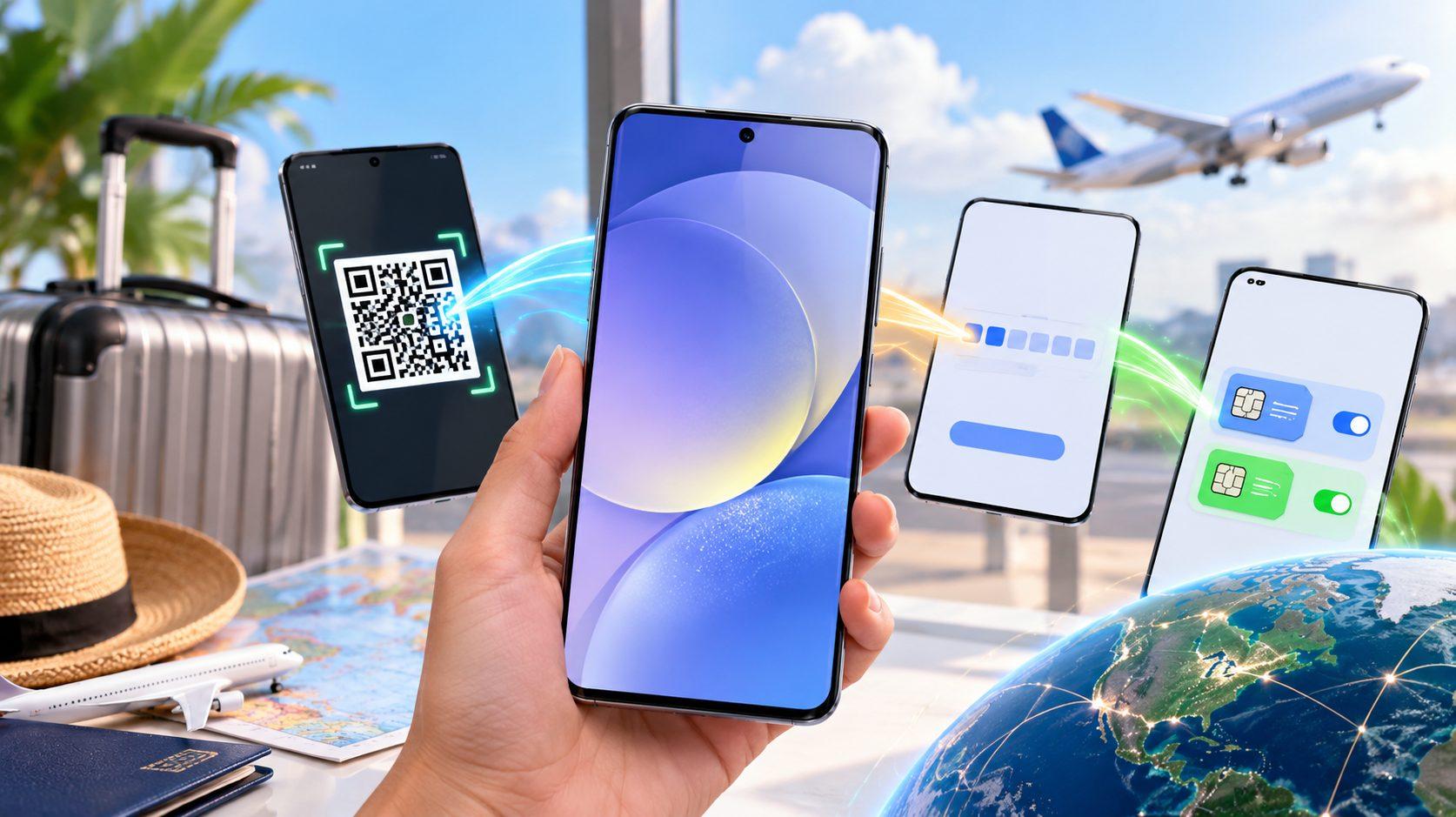
How to Set Up eSIM on Samsung Galaxy: QR Code, Activation Code and Transfer Steps
An eSIM (embedded SIM) is a programmable chip soldered inside your Samsung Galaxy that downloads a carrier profile instead of holding a plastic card. On any One UI phone that supports it, the setup path is Settings > Connections > SIM manager > Add eSIM, and the whole job usually finishes within 5 minutes over Wi-Fi.
Samsung’s S-series eSIM support begins with the Galaxy S20. Support now covers the S21 through S26 lines, the Galaxy Z Fold and Z Flip foldables, the Note20, selected Galaxy A models and LTE versions of the Galaxy Tab S range. Every profile follows the GSMA consumer eSIM specification (SGP.22), so a plan from T-Mobile, Verizon, AT&T or a travel provider installs the same way.
You can add a plan four ways: scan a carrier QR code, type an activation code by hand, accept a carrier’s automatic download, or move an existing number from an old Galaxy or iPhone.
The phone must be free of any carrier lock and online during installation. After the profile downloads, a travel eSIM needs mobile data switched to the new line and data roaming turned on. Your home number can stay active on the physical SIM, so calls still reach you abroad. If something fails, the fix is usually a restart, a fresh QR code from the provider, or a manual Access Point Name (APN) entry.
Which Samsung Galaxy phones support eSIM?
Compatibility depends on the model, the sales region and any carrier lock. Some regional versions ship without eSIM even when the same model supports it elsewhere.
These Galaxy families support eSIM in the US and most markets:
Galaxy S series: S20, S21, S22, S23, S24, S25 and S26, including Plus, Ultra and FE versions where sold
Galaxy Z series: Z Fold2 onward and Z Flip3 onward
Galaxy Note series: Note20 and Note20 Ultra
Galaxy A series: selected models such as the A54 and newer mid-range phones, depending on region
Galaxy Tab: cellular versions of the Tab S9, S10 and S11 (Wi-Fi-only tablets have no eSIM hardware)
Galaxy XCover: XCover6 Pro
Dial *#06# and look for an EID line, a 32-digit number that only eSIM hardware carries. Or open Settings > Connections > SIM manager and see whether an Add eSIM option appears. A carrier lock adds one more step before setup.
What you need before adding an eSIM
Preparation prevents most failed installs. Gather these before you open SIM manager:
A carrier-free phone. Locked Galaxy devices reject profiles from other networks. Ask the original carrier to lift the lock.
A stable connection. Wi-Fi works best, since the profile downloads over the internet.
The QR code or activation code. Display it on a second screen so the Galaxy camera can scan it.
The latest One UI update. Go to Settings > Software update > Download and install.
Enough battery. Some carriers suggest at least 30% charge so the phone doesn’t shut down mid-download.
Travelers should install before departure, on home Wi-Fi. Most travel eSIM validity periods start when the line first connects abroad, not at installation. With these ready, the QR code method takes under two minutes.
How to set up eSIM on Samsung Galaxy with a QR code
Scanning a QR code is the method most carriers and travel providers expect.
Open Settings and tap Connections.
Tap SIM manager. (Older One UI versions label it SIM card manager.)
Tap Add eSIM. Older builds show Add mobile plan instead.
Tap Scan QR code from service provider.
Point the camera at the code. Confirm the plan name when it appears.
Tap Add, then OK to turn the new line on.
The profile downloads within a minute or two, and the new line appears in SIM manager with a default name like eSIM 1. Tap it to rename the line (“Japan data”, say).
A QR code usually works only once. When the camera can’t read the code, typing it in works just as well.
How to enter an eSIM activation code manually
Manual entry suits buyers who received the code on the same phone, so there’s nothing to scan.
Go to Settings > Connections > SIM manager > Add eSIM.
Tap Scan QR code from service provider.
Tap Enter activation code below the camera window.
Paste the full code. It usually starts with LPA:1$ and includes the SM-DP+ address (the provider’s download server) plus a matching ID.
Tap Connect or Add and wait for the download.
Copy the code exactly, since one wrong character returns an “unable to add” error. Some providers split the SM-DP+ address and activation code into two fields. Carriers also offer automatic options that skip codes entirely.
Other ways to add an eSIM on Galaxy
Samsung offers four extra routes, each from the same Add eSIM screen.
eSIM Simple Setup and carrier app
Some US carriers, including T-Mobile and Verizon, push the plan straight to the phone. Tap Add eSIM, and the Galaxy queries the carrier’s discovery server and downloads any plan waiting for your device.
Transfer from another Galaxy or Android phone
Pick Transfer SIM from Galaxy/Android phone on the new device. Tap Transfer on the old phone, enter the 6-digit verification code shown on the new one and choose the number to move. Both phones need Wi-Fi and Bluetooth turned on.
Transfer from an iPhone
Pick Transfer SIM from iPhone. The Galaxy shows a QR code. Scan it with the iPhone camera, confirm, and the number moves over.
Convert a physical SIM to eSIM
Tap the physical SIM inside SIM manager, then Convert to eSIM. The plastic card stops working once the conversion finishes. Whichever method you used, a travel line still needs its data settings checked.
Turn on mobile data, data roaming and APN
Downloading the profile doesn’t route data through it. Three settings decide whether a travel eSIM connects.
Mobile data. In SIM manager, tap Mobile data under Preferred SIM and pick the eSIM. Leave Calls and Text messages on your home SIM to keep your number reachable.
Data roaming. Open Settings > Connections > Mobile networks and switch Data roaming on. Travel eSIMs connect through partner networks abroad, so the phone treats them as roaming. Turn roaming off on your home line, though, or your home carrier may bill international rates.
APN. Most profiles set the APN automatically. If the line shows signal but no data, go to Mobile networks > Access Point Names, tap Add and enter the APN your provider lists. Save it and select it.
Galaxy phones also offer Auto data switching, which falls back to the other SIM when the preferred one loses coverage. Abroad it can quietly pull data from your home plan, so keep it off. These choices tie into how Galaxy phones juggle more than one line.
Managing dual SIM and multiple eSIMs
Dual SIM on Galaxy means two lines active together, usually one physical SIM plus one eSIM (hybrid mode). Several eSIM profiles can sit stored in SIM manager, but most models run only one eSIM at a time.
A traveler can keep a US line, a Europe data plan and a Japan data plan on one phone and turn each on when needed. Deleting a profile is permanent: tap the line, then Remove. Even with this setup, a few installs still fail.
Troubleshooting common Galaxy eSIM problems
Most errors trace back to the connection, the code or the lock status.
QR code won’t scan. Raise screen brightness on the second device, clean the camera lens or switch to manual entry.
“Unable to add eSIM.” Confirm the phone is unlocked and online. Then ask the provider whether the code was already used.
No signal after install. Toggle Airplane mode for 10 seconds or restart. Then open Network operators and select a network manually.
Signal but no internet. Turn on Data roaming and check the APN entry.
Line grayed out. Tap the eSIM in SIM manager and switch it on.
If nothing works, the provider can reissue the profile, which is how travel eSIM sellers handle most support requests.
Setting up a Vesim travel eSIM on your Galaxy
Vesim sells data eSIMs for 220 countries and destinations, with plans starting from $0.60. The install follows the QR code or activation code steps shown earlier. Activation is instant, and more than 10K travelers already use it.
Buy the plan on Vesim, then scan the code from your email at home. Switch mobile data to the new line when you land. Plan details such as data allowance and validity appear on each country page, for example eSIM plans for the United States or eSIM plans for Japan.
Do all Samsung Galaxy phones support eSIM?
No. Support starts with the Galaxy S20, Z Fold2, Z Flip3 and Note20, plus selected A-series models. Regional versions differ, so dial *#06# and look for an EID to be sure.
What is an EID on a Samsung phone?
An EID (eUICC Identifier) is the 32-digit serial number of the eSIM chip. Carriers use it to link a profile to your exact device. Dial *#06# and it appears on screen next to the IMEI numbers.
Where is SIM manager on Samsung Galaxy?
SIM manager sits under Settings > Connections. Older One UI builds call it SIM card manager, and its add button reads Add mobile plan instead of Add eSIM.
How long does eSIM activation take on Galaxy?
Activation takes 1 to 5 minutes on Wi-Fi. Carriers sometimes confirm the line a little later on their side, so a short wait after the line appears is normal.
Can I use an eSIM and a physical SIM at the same time?
Yes. Galaxy phones support hybrid dual SIM, with one physical SIM and one eSIM active together. Assign calls to one line and mobile data to the other in SIM manager.
How many eSIMs can a Samsung Galaxy store?
Galaxy phones store several eSIM profiles, though the exact limit isn’t published by Samsung. Most models run one eSIM at a time, and you switch between stored lines in SIM manager.
Which methods can I use to add an eSIM on Galaxy?
Samsung supports QR code scan, manual activation code, carrier Simple Setup, transfer from a Galaxy or iPhone, and SIM-to-eSIM conversion. All start from the Add eSIM button.
Is an eSIM better than a physical SIM for travel?
An eSIM is faster for travel because you install it before leaving and never hunt for a SIM shop at the airport.
Can I reuse an eSIM QR code after deleting the profile?
Usually not. Most QR codes work once. Deleting the profile erases it, so you’ll need a fresh code from the provider.
Should I turn on data roaming for a travel eSIM?
Yes, on the travel eSIM only. It connects through partner networks abroad, which Galaxy reads as roaming. Leave roaming off on your home SIM to avoid carrier charges.
Does a carrier-locked Galaxy work with a travel eSIM?
No. A locked phone rejects profiles from other networks. Ask your original carrier to remove the lock before you buy any travel plan.
Which is easier, QR code or manual activation code?
The QR code is easier when you have a second screen to display it. Manual entry wins when the code arrives on the same phone you’re setting up.
Setting up an eSIM on a Samsung Galaxy comes down to one menu path: Settings > Connections > SIM manager > Add eSIM. Confirm your model carries an EID and is unlocked. Scan the QR code or type the activation code, or transfer a number from an old Galaxy or iPhone. Then point mobile data at the new line, switch on data roaming and check the APN. Fix stubborn errors with a restart or a fresh code. For your next trip, pick a plan on Vesim and have the eSIM installed before you board.