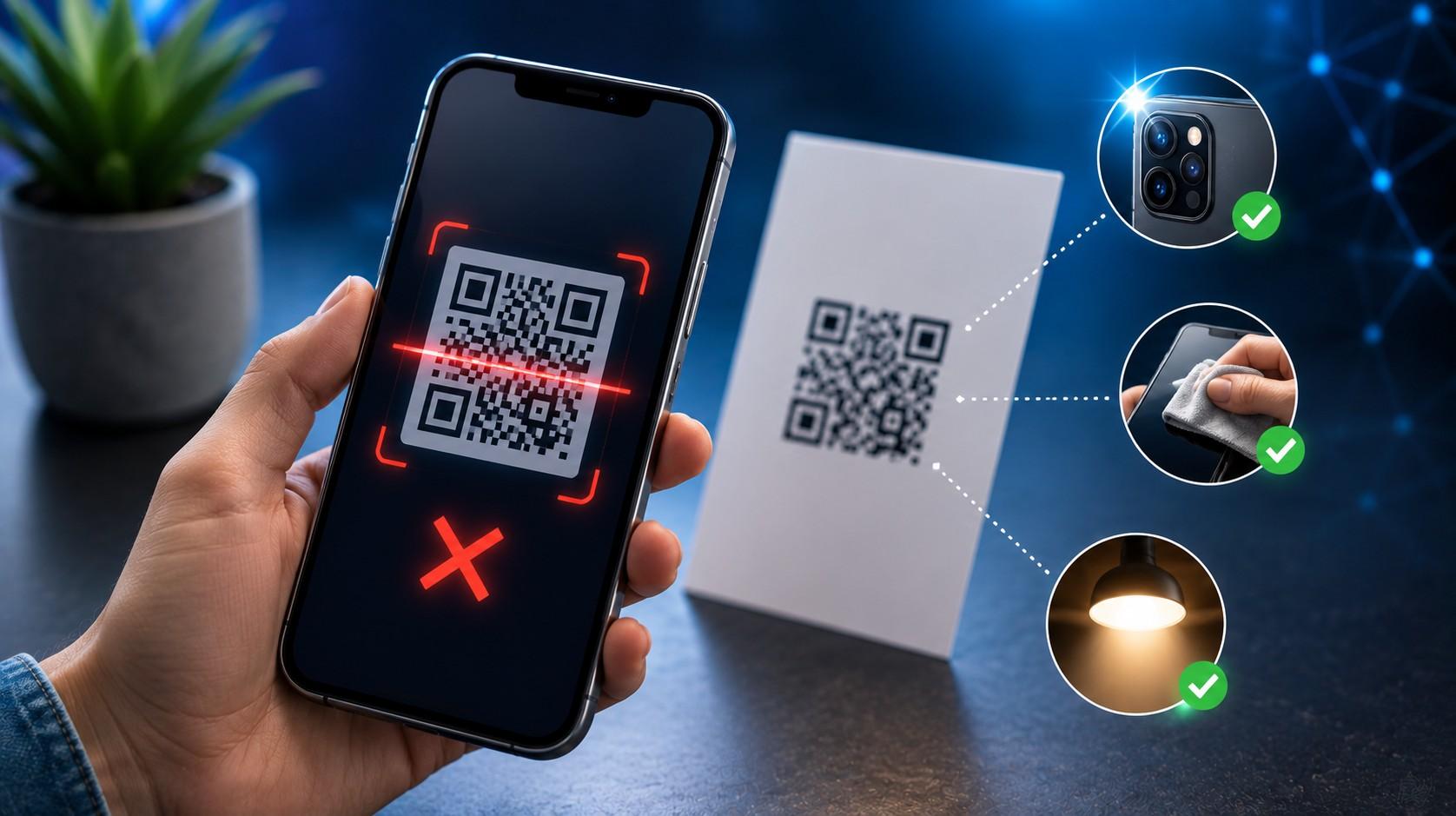
eSIM QR Code Not Scanning: How to Fix It
An eSIM QR code is a printed or on-screen encoding of an LPA activation string, and it contains three things: the address of the SM-DP+ server holding your profile, a matching ID that identifies your specific plan, and a format marker your phone reads first. It carries no data plan itself. Scanning it simply tells your handset where to go and what to ask for.
That distinction explains why scan failures split into two groups. Either the camera can’t read the code, which is an optics problem solved by brightness, distance, and focus, or the phone reads it fine and the download fails, which is a network, storage, or eligibility problem. The error text tells you which group you’re in, and the two need completely different fixes.
Installation takes about two minutes when it works, and Vesim delivers the code by email so you can install before departure across 220+ destinations on plans from $0.60. GSMA’s SGP.22 specification also defines a manual entry path, which is the single most reliable workaround when a camera refuses to cooperate. Most travelers never learn it exists.
This guide covers what the code actually contains, six fixes in order of speed, the exact meaning of each common error message, the cases where a code is genuinely dead, and how to stop the problem happening on the next trip. Eleven questions follow.
What the QR code contains
The code encodes a single line of text, usually starting with LPA followed by the server address and the matching ID. Your camera decodes that string and hands it to the eSIM installer, which opens a session with the server.
Nothing about the code is secret in the sense of a password, but it is single-use in the sense of a ticket. Once the server delivers the profile, the matching ID is consumed and the code stops working forever.
Photographing the code is fine and worth doing. Sharing it isn’t, since whoever installs it first gets the plan, which is the same binding rule explained in can you use one eSIM on two devices. Assuming your code is unused, start with the camera.
Fix 1: Improve the scan conditions
Camera failures account for a large share of reported problems and take seconds to resolve. Phones struggle with QR codes far more than people expect, particularly small ones displayed on a dim screen.
Raise the display brightness on the device showing the code to maximum.
Hold the phone 15 to 25 cm away and keep both devices still.
Zoom the image so the code fills at least half the screen.
Switch the displaying device out of dark mode, which can invert contrast.
Clean the camera lens, since a smudge defeats autofocus at close range.
Displaying the code on a laptop or tablet works better than on another phone, because the larger screen gives the camera more to focus on. Printing it works best of all. If the camera still won’t lock on after these, stop fighting it and type the details instead.
Fix 2: Enter the details manually
Manual entry bypasses the camera completely and works with the same activation details your email contains: the SM-DP+ address and the activation code, sometimes listed as a matching ID.
On iPhone: Settings > Cellular > Add eSIM > Use QR Code > Enter Details Manually, then paste each field. On Android: Settings > Network and internet > SIMs > Add eSIM > Need help, or “Enter it manually” depending on the build.
Copy and paste rather than retyping. The matching ID runs long, mixes letters and digits, and one wrong character produces a download failure that looks identical to a server problem. Manual entry solves optical failures outright, so anything that fails here is a connection or eligibility issue.
Fix 3: Get on stable Wi-Fi
Profile download needs a working internet connection, and it needs a stable one for the 30 to 60 seconds the session takes. Airport captive portals, hotel networks with device caps, and coffee shop hotspots all interrupt it at the wrong moment.
Use home broadband where possible, and install a day before you fly rather than at the gate. Where only mobile data is available, your home carrier’s connection works fine for the download itself.
Corporate and university networks cause a specific failure, because some firewalls block the ports the SM-DP+ session uses. Switching to a phone hotspot or a home network resolves it immediately. A VPN causes the same effect and belongs in the same category, covered below. If the network is clean and the download still fails, look at storage.
Fix 4: Free up profile storage
Handsets store a finite number of profiles on the eUICC chip, typically 8 to 20, and installation fails once the chip is full. The error rarely says so, which is why travelers chase network problems that don’t exist.
Open your cellular settings and count the installed plans, including expired ones from past trips. Delete anything you no longer need, one at a time, then retry the installation.
Delete carefully. Removing an active plan usually can’t be undone, and reinstallation is blocked on most travel profiles, so only clear plans you’re certain are finished. The full procedure and the risks are in do you need to remove an eSIM after your trip. With space free, software version is the next thing to check.
Fix 5: Update the software and check date and time
Outdated operating systems break eSIM installation in ways the error messages never explain. iOS versions before 14 and Android builds before 10 handle profile downloads poorly, and specific point releases have shipped with known eSIM bugs.
Update before you travel, over Wi-Fi, and reboot afterward. Then check something travelers almost never think of: the device date and time. A clock set manually and drifting by hours breaks the certificate validation the SM-DP+ session depends on, producing a generic download failure.
Set date and time to automatic under Settings > General > Date and Time on iPhone, or Settings > System > Date and time on Android. Correct time also matters for the network registration that follows installation, which is where the eSIM not working after landing fixes take over. One more piece of software commonly interferes.
Fix 6: Turn off the VPN and try another network
VPN clients reroute the profile download through a foreign server, and some SM-DP+ platforms reject sessions arriving from data center IP ranges. The download then fails with no useful explanation.
Disconnect the VPN entirely, not just for the browser, then retry. Private DNS settings and content filters on Android cause the same problem, and both sit under Settings > Network and internet.
If the download still fails on a clean network with the VPN off, switch networks completely: home Wi-Fi to mobile hotspot, or hotel Wi-Fi to a friend’s connection. Two failures on two independent networks means the fault is with the code or the device rather than the connection, and the error text will confirm which.
What the error messages actually mean
Error wording differs by platform, and each phrase maps to a specific cause:
“Unable to Add Cellular Plan” on iPhone is generic and covers network, storage, and code faults alike.
“This code is no longer valid” means the profile was already downloaded, usually onto another device.
“Invalid QR code” means the camera decoded something that isn’t an LPA string, often a marketing code or a cropped image.
“Cellular plan cannot be added at this time” points to a server-side or connectivity failure, and retrying in 10 minutes often clears it.
“Not supported by your carrier” indicates a carrier-locked handset rejecting third-party profiles.
Carrier lock is the one that no fix resolves. Contract handsets from US, Japanese, and some European carriers refuse foreign profiles until the carrier unlocks them, and the compatibility test in how to know if your phone is eSIM compatible catches it before you buy a plan. Beyond lock status, a few codes are simply finished.
When the code is genuinely dead
Some codes can’t be revived, and recognizing them saves an hour of pointless retries. A code is spent once any device has completed the download, which includes a device you no longer own or a friend who scanned it to help.
Codes also expire. Providers set a redemption window, so a plan bought months before a postponed trip may pass its installation deadline even though it was never used. Scan limits apply on some platforms too, capping the number of download attempts before the code locks.
Contact support with your order number and the exact error text in these cases. Reissue is sometimes possible, particularly when a handset failed before the profile registered. Where it isn’t, a replacement plan installs in a couple of minutes, and prevention is straightforward.
How to avoid this next time
Preparation removes nearly every scan problem, and it costs five minutes:
Install the profile at home on stable Wi-Fi, at least one day before departure.
Screenshot the QR code and save the SM-DP+ address and activation code as text.
Update iOS or Android and reboot before you install anything.
Delete expired profiles so the chip has space for the new plan.
Disconnect any VPN before starting the download.
Screenshots matter more than travelers realize, since you can’t open a confirmation email without data. Keep the image in a favorites album where you’ll find it fast. Anyone traveling monthly should also read the redundancy notes in the best eSIM for business travelers guide, because a second plan is cheap insurance against a code that refuses to install at the worst moment.
Installed but still not connected
Installation and activation are separate events, and plenty of travelers assume a failure when the profile actually installed correctly. The code scanned, the plan appears in your line list, and the status reads “Not activated” or “No Service”.
That state is normal before arrival. Travel profiles complete activation when they register on a partner network in the destination country, so a plan installed at home in Dubai will sit dormant until the phone lands in Lisbon and searches for a local carrier.
Check three things before assuming the install failed: the line is switched on, data roaming is enabled for that line, and the travel profile is set as the data line. Each takes one tap, and each is a common oversight. Where those are correct and the line stays dark after landing, the troubleshooting sequence moves to network settings rather than the QR code.
Why won’t my phone scan my eSIM QR code?
Camera failures usually come down to screen brightness, distance, or focus, and raising brightness while holding the phone 15 to 25 cm away fixes most of them. When the camera still won’t read it, use manual entry with the SM-DP+ address and activation code from your email.
Can I install an eSIM without scanning a QR code?
Yes, every major platform supports manual entry of the activation details. On iPhone the path is Settings > Cellular > Add eSIM > Enter Details Manually, and Android offers the same option under Add eSIM.
What does “Unable to Add Cellular Plan” mean on iPhone?
It’s a generic failure covering several causes: an unstable connection, a full profile storage chip, an already-used code, or a carrier-locked handset. Work through connection, storage, and lock status in that order.
Do I need internet to install an eSIM?
Yes, the profile downloads from a remote server, so Wi-Fi or an existing mobile data connection is required. The download needs about 30 to 60 seconds of stable connectivity to complete.
Can I scan the same QR code twice?
No, the matching ID is consumed once a device completes the download. A second attempt on any handset returns an invalid or already-used error, and the plan stays with the first device.
Which conditions make a QR code scan fail most often?
Four dominate: low display brightness, dark mode inverting the image, a code displayed too small on another phone’s screen, and a smudged camera lens. Printing the code or showing it on a laptop screen removes all four.
Does a VPN stop an eSIM from installing?
Yes, in many cases, because some profile servers reject sessions arriving through data center IP ranges. Disconnect the VPN completely and retry rather than switching servers.
Why does installation fail when my phone is nearly full?
Profile storage on the eUICC chip is separate from photo and app storage, and it holds only 8 to 20 plans. Installation fails when that chip is full, regardless of how much general storage remains.
Can a carrier-locked phone install a travel eSIM?
No, a locked handset rejects third-party profiles outright and no setting overrides it. Request an unlock from your home carrier before travel, then confirm eSIM support by dialing *#06# and checking for an EID.
Is it safe to share a screenshot of my QR code?
No, treat it like a bearer ticket, since whoever installs it first receives the plan. Store the screenshot privately and never post it in a group chat or a support forum.
What should I do if my code has expired?
Contact support with your order number and the exact error message, since reissue is sometimes available. Where it isn’t, a replacement plan across 220+ destinations installs in minutes from the Vesim destinations page.
How long does a successful installation take?
The whole process runs about two minutes, with 30 to 60 seconds of that spent downloading the profile. Anything that hangs past five minutes has failed and should be retried on a different connection.
The short version
An eSIM QR code carries an LPA activation string pointing to an SM-DP+ server, not the plan itself, and it works exactly once. Failures split cleanly: the camera can’t decode the image, or the download session fails after decoding. Brightness, distance, and a clean lens fix the first group, and manual entry of the server address and activation code bypasses it entirely.
Download failures trace to a short list. Unstable or filtered Wi-Fi, a full profile chip holding expired plans, outdated software, a drifting device clock, an active VPN, or a carrier-locked handset. Error wording narrows it further, with “no longer valid” meaning the code was already redeemed and “not supported by your carrier” meaning the phone is locked.
Install at home, a day early, on a stable connection, with the code screenshotted and the activation details saved as text. Plans across 220+ destinations start from $0.60 at vesim.global, and a two-minute setup before departure removes the airport scramble entirely.